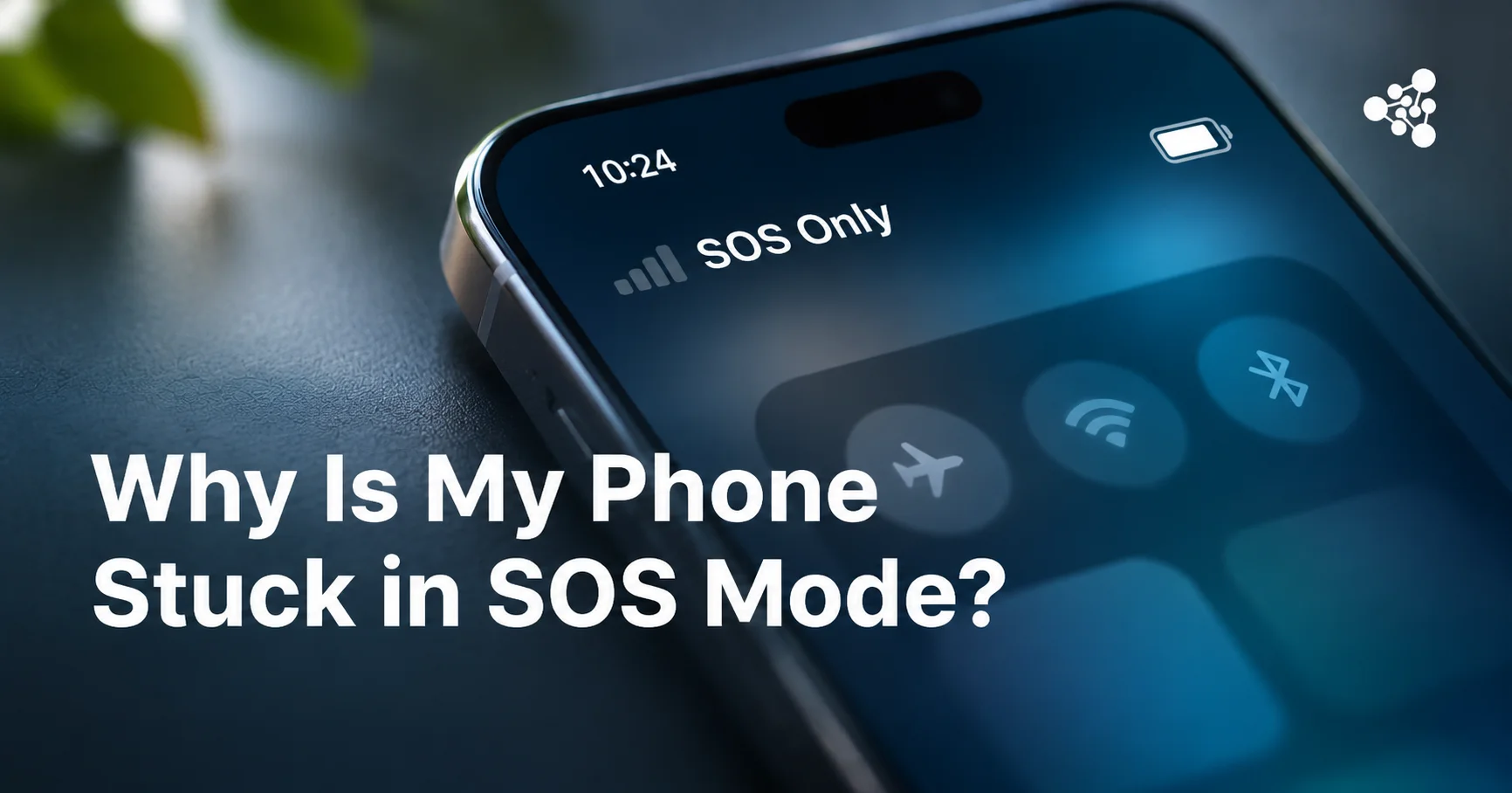
Your iPhone suddenly displays SOS or SOS Only where the cellular signal bars normally appear. Calls won't connect, texts may fail, and mobile data stops working. This usually means your phone has lost access to your carrier's network, although emergency calling may still be available.
Quick Answer
If you're wondering why your phone keeps going into SOS mode, the most common causes are poor cellular coverage, carrier outages, SIM or eSIM problems, and incorrect network settings. To get your phone out of SOS mode, try moving to an area with better reception, toggling Airplane Mode, and restarting your device. If the problem continues, check your cellular plan and contact your carrier.
What Does SOS Mean on Your Phone?
On an iPhone, SOS or SOS Only means the device isn't connected to your regular cellular network but may still be able to make emergency calls through another available network.
This is different from Emergency SOS, the feature that lets you deliberately contact emergency services using your phone's buttons.
SOS Only doesn't necessarily mean your phone is damaged, blocked, or experiencing a serious software problem. It simply indicates that normal cellular service is unavailable.
The SOS indicator is primarily associated with iPhones in countries where emergency calling through other carriers is supported. Android phones may display Emergency calls only or a similar message.
Common Reasons Your Phone Shows SOS or SOS Only
Several issues can interrupt your cellular connection.
- Weak or no cellular signal: Underground parking garages, remote areas, and buildings with thick walls can interfere with reception.
- Carrier outages: Network maintenance or technical failures may temporarily disconnect devices.
- SIM or eSIM problems: A damaged physical SIM, inactive eSIM, or provisioning error can prevent network registration.
- Network settings issues: Incorrect configurations or temporary software glitches may disrupt connectivity.
- Account or activation problems: An inactive plan, suspended service, or incomplete activation can leave your phone without normal cellular access.
A hardware problem is also possible, particularly if the phone was dropped, exposed to liquid, or previously repaired.
Why Does Your Phone Keep Switching to SOS Mode?
If SOS mode comes and goes, your phone may be repeatedly losing and regaining its cellular connection.
This commonly happens when traveling between areas with different signal strengths. However, intermittent SIM failures, carrier problems, or cellular hardware faults can produce similar symptoms.
Check whether the problem occurs in one location or everywhere. If it happens only in a particular building or neighborhood, coverage is the more likely explanation. If it happens across multiple locations while other phones on the same carrier work normally, investigate your device or cellular plan.
How to Get Your Phone Out of SOS Mode
Try these troubleshooting steps in order. Most temporary connectivity problems can be investigated without resetting your entire phone.
1. Check Your Cellular Coverage
Move outdoors or to another location with stronger reception. If other people using the same carrier also have no service, a local network outage may be responsible.
2. Toggle Airplane Mode
Open Control Center, turn on Airplane Mode, wait at least 15 seconds, then turn it off.
This forces your iPhone to attempt a fresh cellular connection.
3. Restart Your Phone
Turn your iPhone off, wait approximately 30 seconds, and turn it back on.
Restarting can resolve temporary software issues affecting network registration.
4. Check Your SIM or eSIM
For a physical SIM, turn off your phone before removing it. Inspect the card and tray for visible damage, then reinstall the SIM correctly.
For an eSIM, open Settings > Cellular and confirm that your cellular line is enabled.
Don't delete your eSIM as a troubleshooting step unless your carrier instructs you to do so. Reinstalling it may require a new activation process.
5. Update iOS and Carrier Settings
Connect to Wi-Fi and check Settings > General > Software Update.
To check for a carrier settings update, open Settings > General > About. If an update is available, you may see a prompt to install it.
6. Reset Network Settings
If the previous steps haven't worked, go to:
Settings > General > Transfer or Reset iPhone > Reset > Reset Network Settings.
This removes saved network configurations, including Wi-Fi networks and passwords, and resets cellular and VPN settings. It doesn't erase your photos or apps.
Network resetting can fix configuration problems, but it won't resolve carrier outages, inactive subscriptions, or damaged hardware.
How to Fix SOS Mode on an iPhone
If your iPhone still shows SOS Only, check whether it recognizes your cellular line.
Open Settings > Cellular and look for your SIM or eSIM. If your line appears, verify that it's enabled and that the appropriate line is selected for cellular data.
If your line is missing or the phone displays a SIM-related error, contact your carrier to verify activation and provisioning.
On compatible iPhones, you can also check Settings > General > About to confirm that the device displays an IMEI. A missing IMEI or other cellular hardware warning may indicate a problem requiring professional inspection.
Could Your Carrier, SIM Card, or eSIM Be the Problem?
Yes. A working phone can display SOS Only when its carrier cannot authenticate or connect the device.
Contact your carrier to verify that:
- Your cellular account is active.
- There are no service outages affecting your area.
- Your SIM or eSIM is properly provisioned.
- Your device's IMEI isn't restricted from network access.
- Your phone is compatible with the carrier's network.
If necessary, your carrier may issue a replacement SIM or help reactivate your eSIM.
What to Do If Your Phone Is Still Stuck on SOS
When software troubleshooting and carrier checks don't restore service, a hardware issue becomes more likely.
A damaged antenna, cellular modem, or internal connection may prevent the phone from registering on a network. These problems aren't always visible from the outside.
This is especially relevant when purchasing a used or refurbished iPhone. A device may look undamaged but still have cellular connectivity issues.
Professional testing can help businesses identify such problems before resale. NSYS Diagnostics allows used-device businesses to check network-related functions, IMEI status, and other hardware components as part of a structured diagnostic process.
For companies processing large volumes of used smartphones, checking these functions helps distinguish potentially defective devices from phones experiencing temporary network problems.
Learn more about NSYS professional device testing solutions.
When to Contact Your Carrier or Apple Support
Contact your carrier first if your cellular plan is inactive, your eSIM won't activate, or multiple devices on the same network have lost service.
Contact Apple Support if your carrier confirms that your account and network are working but your iPhone continues to display SOS Only.
If the problem started after physical damage or liquid exposure, a professional hardware inspection may be necessary.
Frequently Asked Questions
Can You Still Call or Text When Your Phone Says SOS?
Regular cellular calls and SMS messages generally won't work. Emergency calls may still connect through another available carrier network. Wi-Fi-based messaging and calling services may continue working if you have an internet connection.
Does SOS Mode Mean Your SIM Card Is Bad?
Not necessarily. Poor coverage, carrier outages, and account problems can cause the same warning. A damaged SIM is only one possible explanation.
Can an Unpaid Phone Bill Cause SOS Mode?
Yes. If your carrier suspends cellular service because of an overdue payment, your iPhone may lose normal network access and display SOS Only.
Does SOS Mean Your Phone Is Blacklisted?
No. SOS Only doesn't automatically indicate an IMEI blacklist restriction. However, a blocked or blacklisted device may be unable to register on a cellular network. Your carrier can help verify its status.
For additional troubleshooting instructions, see Apple's official guide to SOS, No Service, and Searching.