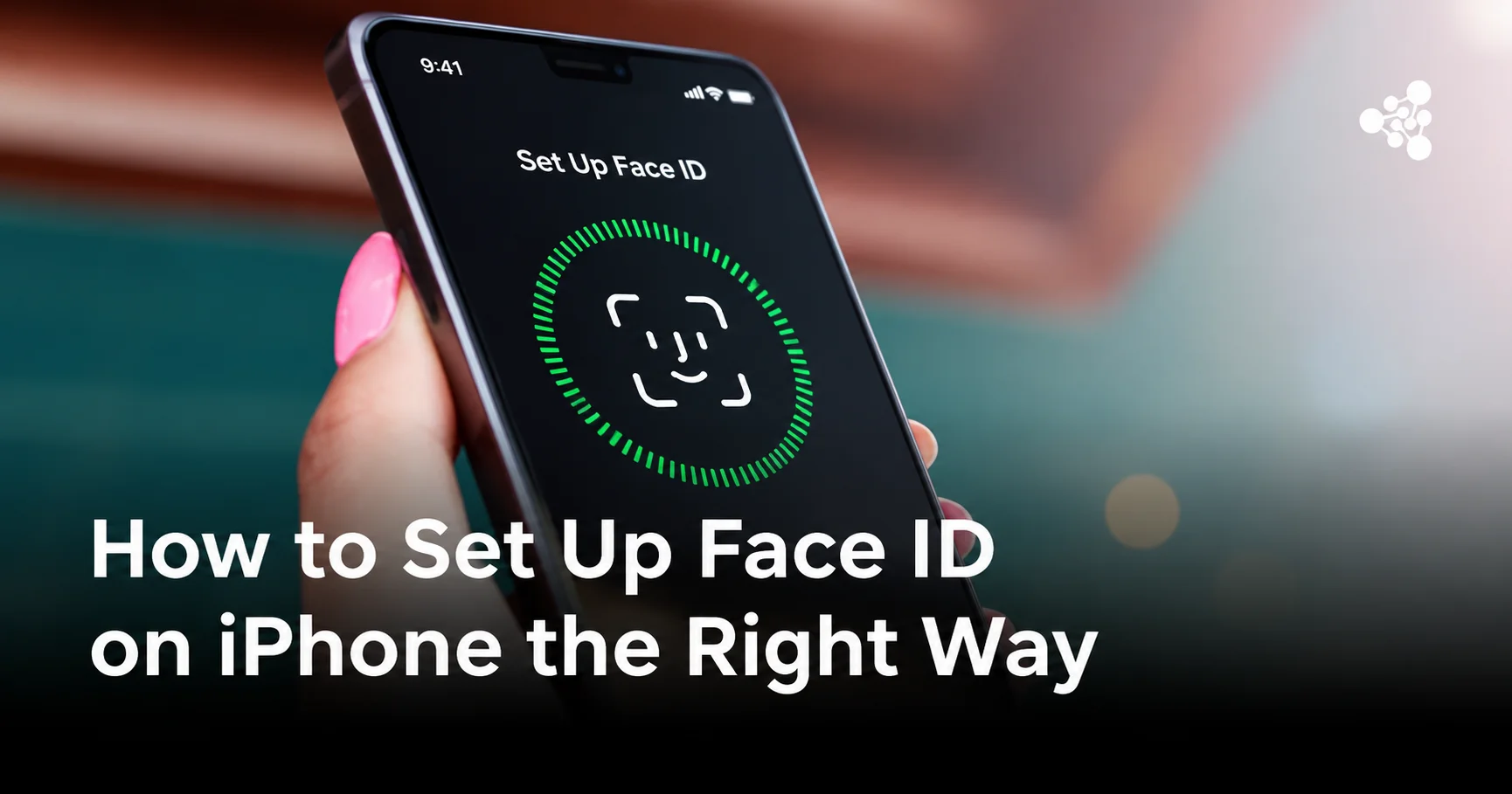
Face ID lets you unlock your iPhone, authorize payments, and sign in to supported apps without entering your passcode every time. Setting it up takes only a few minutes, but camera positioning and security settings can affect how reliably it recognizes you.
Quick Answer
To set up Face ID on iPhone, open Settings, select Face ID & Passcode, enter your passcode, and tap Set Up Face ID. Position your face inside the frame and slowly move your head to complete two scans. Once finished, choose which features can use Face ID.
What Is Face ID and How Does It Work?
Face ID is Apple's facial recognition system. It uses the TrueDepth camera system to analyze the unique geometry of your face and compare it with securely stored facial data.
Unlike basic photo-based recognition, Face ID uses depth information, helping it distinguish a real face from a photograph. It also adapts to gradual changes in appearance, such as growing facial hair.
Facial recognition data is protected by the iPhone's Secure Enclave and isn't uploaded to iCloud.
Which iPhones Support Face ID?
Face ID is available on iPhone X and later models equipped with a TrueDepth camera system, excluding iPhone SE models and other models that use Touch ID instead.
To check whether your device supports Face ID, open Settings and look for Face ID & Passcode. If you see Touch ID & Passcode instead, your iPhone uses fingerprint recognition.
What to Do Before Setting Up Face ID
A few simple checks can help prevent setup problems:
- Make sure the TrueDepth camera area is clean and unobstructed.
- Remove sunglasses, masks, or accessories that significantly cover your face during the initial scan.
- Hold your iPhone in portrait orientation.
- Set up a device passcode if you haven't already.
You don't need professional lighting. However, keeping your face clearly visible and avoiding obstructions can make the initial setup easier.
How to Set Up Face ID on Your iPhone
- Open Face ID settings. Go to Settings → Face ID & Passcode and enter your current passcode.
- Start the setup. Tap Set Up Face ID, then Get Started.
- Scan your face. Position your face inside the frame and slowly move your head in a circle to capture different angles.
- Complete the second scan. Tap Continue, repeat the movement, and select Done when setup finishes.
- Test Face ID. Lock your iPhone and try unlocking it with your face. The padlock icon should open when Face ID recognizes you, allowing you to swipe up.
Tips for Better Face ID Recognition
If Face ID doesn't recognize you consistently, try these adjustments:
- Hold your iPhone at a natural viewing distance, approximately 10–20 inches (25–50 cm) from your face.
- Move your head slowly during enrollment so the camera can capture different angles.
- Use Set Up an Alternate Appearance in Face ID & Passcode if your appearance regularly changes significantly.
- Review Require Attention for Face ID. Keeping it enabled provides additional protection by checking that you're looking at the device.
On supported iPhones, Face ID can also work while you're wearing a face mask. You can configure this separately under Face ID & Passcode.
How to Choose What Face ID Can Be Used For
After setup, open Settings → Face ID & Passcode to manage the features that use facial recognition.
You can turn individual features on or off without disabling Face ID entirely.
What to Do If Face ID Won't Set Up or Work
If Face ID setup fails or recognition stops working, start with these checks:
- Clean the TrueDepth camera area and remove any screen protector or case obstructing it.
- Restart your iPhone to resolve temporary software problems.
- Check Settings → General → Software Update for available iOS updates.
- Open Face ID & Passcode, select Reset Face ID, and complete enrollment again.
If you see messages such as "Face ID Is Not Available" or "A problem was detected with the TrueDepth camera," the issue may involve hardware rather than setup.
This is particularly relevant when buying a refurbished iPhone. Face ID problems can result from damaged camera components or previous repairs.
For businesses processing used iPhones, NSYS Diagnostics provides automated checks of Face ID functionality alongside other hardware tests. These checks help identify devices requiring further inspection before resale.
Learn more about NSYS professional device diagnostics.
Frequently Asked Questions
Can you set up Face ID with glasses on?
Yes. Face ID recognizes most prescription glasses. If you use Face ID with a Mask, you can also register additional pairs of glasses through the Add Glasses option.
Can you add more than one face to Face ID?
Face ID supports one primary facial enrollment and one alternate appearance. The alternate appearance can be used by another person, although doing so gives that person access to features protected by Face ID.
Why does Face ID sometimes ask for a passcode?
This is normal. Your iPhone requires a passcode after restarting, following repeated unsuccessful recognition attempts, and in certain other security situations.
Can you redo Face ID if it stops recognizing you?
Yes. Go to Settings → Face ID & Passcode → Reset Face ID, then repeat the setup process.
Is Face ID safe to use for payments?
Face ID uses encrypted facial data stored securely on your device. Apple Pay also requires authentication and doesn't share your actual payment card number with merchants.
What should you do if Face ID setup keeps failing?
If cleaning the camera, updating iOS, and resetting Face ID don't help, contact Apple Support or an authorized service provider. A faulty TrueDepth camera system may require professional repair.
For additional instructions, see Apple's official Face ID setup guide and Face ID troubleshooting guide.