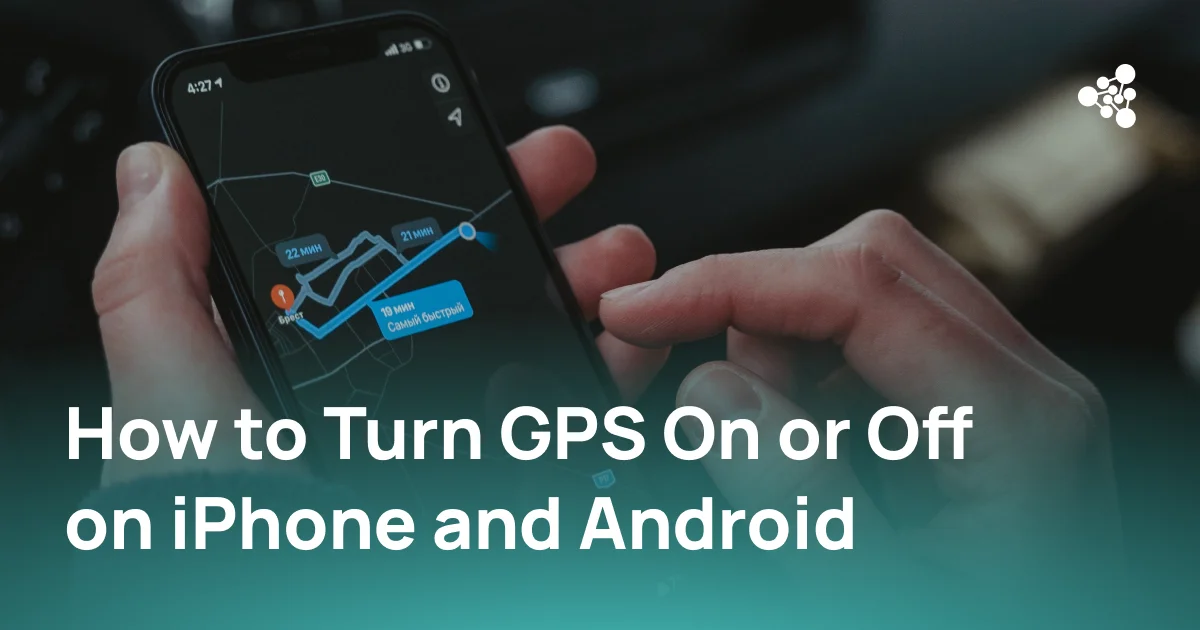
GPS and location settings control how a phone determines and shares its position. They are used by navigation apps, weather services, ride-sharing platforms, device tracking features, and many other apps.
On both iPhone and Android, GPS is managed as part of a broader location system rather than through a separate GPS switch. Location access can be enabled for the entire phone or adjusted for individual apps.
Quick Answer
To turn on GPS on an iPhone, go to Settings → Privacy & Security → Location Services and turn on Location Services. On Android, open Settings → Location and enable location access. Both systems also allow location permissions to be managed for individual apps, including whether an app can access precise or approximate location data.
Key Takeaways
- iPhones manage GPS through Location Services rather than a separate GPS setting.
- Android phones typically provide a Location control in Settings and may also include it in Quick Settings.
- Location access can be restricted for individual apps without disabling it for the entire phone.
- GPS accuracy can be affected by permissions, signal conditions, system settings, and software issues.
- Persistent location problems may require diagnostic testing to determine whether device hardware is functioning correctly.
How GPS and Location Services Work on a Phone
GPS uses signals from satellites to calculate a device's position. However, modern smartphones do not rely on GPS alone. They can combine satellite data with Wi-Fi networks, cellular networks, Bluetooth signals, and device sensors to determine location faster and more accurately.
This is why iOS and Android generally refer to the feature as "Location Services" or "Location" rather than simply GPS.
Turning location access on allows the operating system and permitted apps to use available location technologies. Individual apps can then be given different levels of access depending on their function.
How to Turn On GPS on an iPhone
For anyone looking for how to turn on GPS on iPhone, the relevant control is Apple's Location Services setting.
To enable it:
-
Open Settings.
-
Select Privacy & Security.
-
Tap Location Services.
-
Turn on Location Services.
Once Location Services is enabled, the iPhone can provide location information to system features and apps that have permission to access it.
Check App-Specific Location Permissions
Turning on Location Services does not automatically give every app unrestricted access to location data.
Under Settings → Privacy & Security → Location Services, select an individual app to review its permissions. Depending on the app and iOS version, options may include Never, Ask Next Time Or When I Share, While Using the App, and Always.
Some apps also have a Precise Location setting. When it is disabled, the app receives an approximate location rather than the device's more specific position.
How to Turn Off GPS on an iPhone
To turn off location services on an iPhone completely:
-
Open Settings.
-
Go to Privacy & Security.
-
Select Location Services.
-
Turn off Location Services.
This restricts normal location access across apps, although some system functions and emergency-related features may still use location information under certain circumstances.
Complete deactivation is not always necessary. If the goal is to stop one app from accessing location data, its individual permission can be changed instead.
For example, an app can be set to Never or limited to location access only while it is actively being used. Precise Location can also be disabled when an approximate location is sufficient.
How to Use GPS on an iPhone
Once iPhone Location Services are enabled, compatible apps can use location data according to their permissions.
Common uses include:
- Maps and navigation apps for routes and turn-by-turn directions
- Weather apps for local forecasts
- Ride-sharing and delivery apps for pickup and delivery locations
- Location-sharing services
- Camera and photo features that can associate location data with images
- Apps that provide location-based recommendations or services
If an app cannot determine the phone's location, checking its permission under Location Services is one of the first troubleshooting steps.
How to Turn On GPS on an Android Phone
The exact menu names can vary by Android version and phone manufacturer, but location controls are generally available under Settings.
To turn on location on Android:
-
Open Settings.
-
Tap Location.
-
Turn on Use location or the equivalent location setting.
Many Android phones also provide a Location button in the Quick Settings panel, allowing location access to be enabled or disabled without opening the full Settings menu.
Check Android App Permissions
If location is enabled but a particular app cannot determine the phone's position, check the app's permissions.
Android location permissions commonly allow apps to access location all the time, only while the app is in use, or not at all. Some Android versions also allow users to choose between precise and approximate location access.
Menu names and available options can differ between manufacturers and Android releases.
How to Turn Off GPS on Android
To turn off GPS on Android at the device level, open Settings → Location and disable location access.
Location can also usually be switched off from the Quick Settings panel.
If only one app should be prevented from accessing location data, changing that app's permission is a better option than disabling location for the entire phone. This allows navigation and other location-dependent functions to continue working in permitted apps.
Android location settings may also include controls related to location accuracy, Wi-Fi scanning, Bluetooth scanning, and other services used to improve positioning.
Why GPS May Not Be Working
A phone can have location enabled and still report an incorrect position or fail to determine its location.
Common causes include:
- Location Services or device location is disabled.
- The app does not have the required location permission.
- Precise location access is disabled.
- The phone has difficulty receiving satellite signals indoors or around tall buildings.
- Airplane mode, network conditions, or other connectivity settings affect supporting location services.
- The app or operating system has a temporary software issue.
- Location-related hardware is malfunctioning.
Testing the same location function in several apps can help narrow down the problem. If one app fails while other apps determine the location correctly, the issue is more likely related to that app or its permissions.
If several unrelated apps show the same location problem, device-level settings, software, signal conditions, or hardware should be investigated.
How to Check and Adjust Location Settings
On an iPhone, the main controls are under Settings → Privacy & Security → Location Services. This section shows which apps can request location data and how much access each app has.
On Android, location controls are generally available under Settings → Location, while permissions for specific apps can also be reviewed through the device's permission manager or individual app settings.
One important setting on both platforms is the distinction between precise and approximate location.
Precise access is useful for functions that depend on an exact position, such as turn-by-turn navigation. Approximate access may be sufficient for apps that only need a general area, such as some weather or local content services.
When a GPS Problem May Be Hardware-Related
A location problem is more likely to require hardware investigation when it persists across multiple apps after permissions, software settings, updates, and normal signal conditions have been checked.
For businesses processing used smartphones, GPS functionality should be verified as part of device diagnostics rather than assumed to work because the Location setting can be enabled. A phone may accept the setting normally while still having a functional problem that affects positioning.
NSYS Diagnostics allows used device businesses to run functional tests on smartphones, including GPS testing alongside other hardware checks. This helps identify device issues during intake, refurbishment, grading, or preparation for resale and provides a more consistent record of device condition.
Frequently Asked Questions
Where is GPS on an iPhone?
There is no separate setting labeled "GPS" on an iPhone. GPS access is managed through Settings → Privacy & Security → Location Services.
Is GPS the same as Location Services on an iPhone?
Not exactly. GPS is one technology used to determine location, while Location Services can combine GPS with Wi-Fi, cellular networks, Bluetooth, and other available location data.
Can I turn off GPS for one app without disabling it completely?
Yes. Both iPhone and Android allow location permissions to be managed individually. An app can be prevented from accessing location while location services remain available to other apps.
Why is my phone location inaccurate even when GPS is on?
Location accuracy can be affected by weak satellite reception, indoor use, app permissions, approximate location settings, connectivity, software issues, or device hardware. Comparing location results across several apps can help identify whether the issue is app-specific or affects the phone more broadly.
Does turning off location services disable GPS completely?
Turning off the main location setting prevents most apps and services from using normal location functions. However, certain system, safety, or emergency features may handle location differently depending on the operating system and device configuration.
Managing GPS and Location Settings on iPhone and Android
Turning GPS on or off is handled through Location Services on iPhone and Location settings on Android. Individual app permissions provide more control when location access needs to be limited without disabling it across the entire device.
When location remains inaccurate or unavailable after permissions, settings, software, and signal conditions have been checked, the problem may require deeper device testing. For used-device businesses, testing GPS as part of a standardized diagnostic process helps identify functional issues before grading, pricing, or resale.