When Face ID stops working, the cause can be as simple as a blocked TrueDepth camera or an incorrect setting. In other cases, the problem may involve the TrueDepth camera system itself, especially after a drop, screen replacement, or other repair.
Before replacing parts or sending an iPhone for repair, it makes sense to identify whether the issue is related to settings, software, operating conditions, or hardware. A structured diagnostic process can narrow down the cause and prevent unnecessary repairs.
Quick Answer
If Face ID is not working, first check Face ID settings, make sure nothing is covering the TrueDepth camera, restart the iPhone, and install available iOS updates. If Face ID remains unavailable, cannot recognize a face, or cannot complete enrollment, the next step is to test the TrueDepth camera and related hardware. Persistent enrollment errors can indicate a hardware issue that requires service.
Key Takeaways
- Face ID problems can result from settings, camera obstruction, software issues, or hardware faults.
- Failure to complete Face ID enrollment is a particularly useful diagnostic sign because it can indicate a problem beyond normal recognition conditions.
- Drops and repairs can affect components involved in the TrueDepth camera system.
- Resetting Face ID can resolve some configuration problems, but it will not repair damaged hardware.
- Used and refurbished iPhones should have Face ID checked as part of functional testing before grading or resale.
Why Does Face ID Stop Working on an iPhone?
If an iPhone Face ID is not working, the cause does not automatically point to defective hardware. Face ID depends on several conditions being met before authentication can succeed.
Common causes include:
- Face ID is disabled for the function being used.
- A case, screen protector, dirt, or another obstruction covers the TrueDepth camera.
- The user's face is not sufficiently visible to the camera.
- The iPhone needs to be restarted or updated.
- Face ID enrollment data needs to be reset.
- The TrueDepth camera system has been damaged or is malfunctioning.
Apple recommends checking iOS updates, Face ID settings, camera obstruction, and device positioning before resetting Face ID or seeking service.
This distinction matters because the appropriate fix depends on the cause. Replacing hardware will not solve an incorrect setting, while repeatedly resetting Face ID will not correct a physical fault in the TrueDepth system.
What Are Common Signs of a Face ID Problem?
A Face ID problem can appear in several ways. The exact behavior provides useful information during diagnosis.
Common signs include:
- Face ID does not recognize the enrolled user.
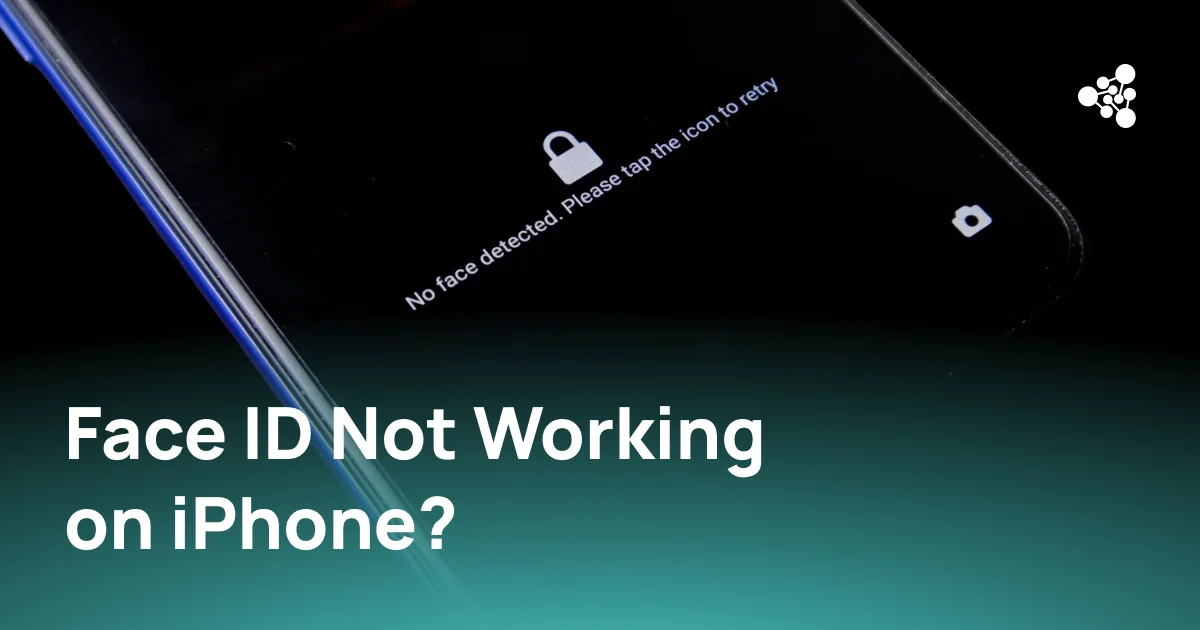
- The iPhone displays a "Face ID Is Not Available" message.
- Face ID works inconsistently.
- Face ID enrollment cannot be completed.
- The phone repeatedly asks for the face to be positioned within the frame during setup without progressing.
Occasional recognition failures do not necessarily indicate damaged hardware. Lighting, positioning, facial obstruction, and other conditions can affect authentication.
Repeated failure during Face ID setup is more significant. Apple states that an iPhone may need service if Face ID setup repeatedly asks for the face to be positioned within the frame without progressing or if the camera is not working and Face ID cannot be configured.
How Do Face ID and the TrueDepth Camera Work?
Face ID relies on the TrueDepth camera system rather than a standard front-camera image alone.
During authentication, the TrueDepth camera captures depth information and an infrared image of the face. The iPhone compares this information with the mathematical representation created during Face ID enrollment. Face ID data remains on the device and is not backed up to iCloud or made available to apps.
This is why a working selfie camera does not automatically mean that the entire Face ID system is functioning correctly. Face ID depends on additional hardware and data beyond the conventional front-facing camera.
What Should Be Checked Before Diagnosing a Hardware Problem?
Several basic checks can rule out common causes before hardware diagnosis begins.
Check Face ID Settings
Open Settings > Face ID & Passcode and confirm that Face ID is configured and enabled for the required functions, such as iPhone Unlock.
A disabled setting can look like a Face ID failure even when the hardware is operating normally.
Clean and Uncover the TrueDepth Camera Area
Check the area around the TrueDepth camera for dirt, fingerprints, cases, or screen protectors that could interfere with its view.
The face should also be clearly visible to the camera. Some sunglasses, masks, and other obstructions can interfere with Face ID under certain conditions.
Restart the iPhone
Restart the device, enter the passcode, and test Face ID again. A restart is a simple way to rule out a temporary software issue before moving to more involved troubleshooting.
Check for iOS Updates
Install available iOS updates before concluding that Face ID has a hardware problem. Apple includes updating the operating system among its first recommended troubleshooting steps.
How Can You Tell Whether the Face ID Problem Is Software or Hardware?
There is no single symptom that identifies every Face ID hardware problem. Diagnosis should instead consider how and when the failure occurs.
A software or configuration issue is more plausible when Face ID previously worked normally, the TrueDepth area is unobstructed, and functionality returns after changing settings, restarting, updating iOS, or resetting Face ID.
Hardware becomes a stronger possibility when:
- Face ID enrollment repeatedly fails.
- Face ID remains unavailable after basic troubleshooting.
- The problem began immediately after physical damage.
- The problem appeared after a repair.
- Other functions associated with the front camera or sensors also behave abnormally.
- The device reports a TrueDepth or Face ID-related error.
Apple notes that the TrueDepth laser system may be disabled for safety reasons if the device is damaged or malfunctions.
A diagnostic process should therefore establish the device's repair history and physical condition alongside its current test results.
Why May Face ID Stop Working After a Drop, Screen Replacement, or Repair?
A drop can damage components without leaving obvious external signs. The display may remain intact and the front camera may still take photos while Face ID no longer functions correctly.
Repair history is also important. Work performed around the display and front sensor area can affect components associated with Face ID if parts are damaged, improperly installed, or otherwise compromised during repair.
Apple specifically warns that improper repair, modification, or the use of non-genuine components in the laser systems can interfere with their safety mechanisms.
For used devices, this makes previous repair history an important part of Face ID diagnosis. A cosmetically clean iPhone can still have a functional problem related to an earlier repair.
How to Test Face ID and the TrueDepth Camera
When the basic checks do not solve the problem, testing should move from normal Face ID behavior to related hardware functions.
Check Face ID Enrollment
If Face ID is already configured, test whether it authenticates normally. If necessary, reset Face ID and attempt a new enrollment.
An enrollment process that repeatedly fails or cannot progress can help distinguish a persistent system problem from an occasional recognition failure.
Test the Front Camera and Related Sensors
Check the front camera and other relevant device functions for additional abnormalities. A working front camera does not prove that the complete TrueDepth system is functioning, but related failures can provide useful diagnostic context.
Look for TrueDepth Camera Errors
System messages mentioning Face ID availability, disabled Face ID, or the TrueDepth camera should be recorded rather than treated as a generic authentication failure.
The exact error can help determine the next diagnostic or repair step.
Run Professional Device Diagnostics
For businesses processing used iPhones, manual Face ID checks can be incorporated into a broader device testing workflow.
NSYS Diagnostics provides more than 60 tests designed to detect over 100 possible hardware defects in used and refurbished mobile devices. The software also checks the authenticity of several iOS components, including the display and front camera, helping businesses document device condition as part of a standardized testing process.
This becomes particularly useful when dozens, hundreds, or thousands of devices need to be evaluated consistently rather than troubleshooting each phone as an isolated case.
When Can Resetting Face ID Help?
Resetting Face ID deletes the existing Face ID enrollment data and allows a new face profile to be created.
To reset it, go to Settings > Face ID & Passcode > Reset Face ID, then select Set Up Face ID and complete enrollment again.
A reset can help when the problem involves existing enrollment data or configuration. It is less likely to help when the iPhone cannot complete enrollment because the TrueDepth camera system is damaged or malfunctioning.
If setup still fails after a reset and the basic troubleshooting steps have already been completed, further diagnostics or professional service may be necessary.
Why Face ID Testing Matters for Used and Refurbished iPhones
Face ID is a core function on compatible iPhones, so an undetected failure can affect device condition, resale value, repair decisions, and customer returns.
The problem is especially relevant when devices have an unknown history. An iPhone may arrive with a replaced screen, previous internal repairs, or physical damage that is not obvious during cosmetic inspection.
A structured intake process can include:
Device identification → repair-history assessment → functional testing → Face ID check → condition grading → resale or repair decision
The goal is to identify the fault before the device is graded or listed for sale. Consistent diagnostic records can also make it easier to distinguish pre-existing defects from issues reported later.
Frequently Asked Questions
Why did Face ID suddenly stop working on my iPhone?
Face ID can stop working because of settings, an obstructed TrueDepth camera, software issues, changes in operating conditions, or hardware damage. Start with settings, camera obstruction, a restart, and available iOS updates before assuming that hardware needs repair.
Why does my iPhone say "Face ID Is Not Available"?
The message can indicate that Face ID cannot currently operate. If it remains after restarting, updating iOS, checking the TrueDepth camera area, and reviewing Face ID settings, additional diagnostics or service may be required.
Can a screen replacement cause Face ID to stop working?
Face ID problems can appear after a screen replacement or other repair if components associated with the TrueDepth system are damaged or affected during the process. The repair history should therefore be considered when diagnosing a device that previously had working Face ID.
Can Face ID be fixed without replacing the TrueDepth camera?
Yes, depending on the cause. Problems related to settings, obstruction, software, or Face ID enrollment may be resolved without replacing hardware. A confirmed hardware fault requires a different repair approach.
How can I tell if Face ID has a hardware problem?
Persistent Face ID enrollment failure, TrueDepth-related errors, problems following physical damage or repair, and failures that remain after basic software troubleshooting can point to a hardware issue. Testing related functions and running device diagnostics can provide additional evidence before a repair decision is made.
Diagnose the Face ID Problem Before Repair
When Face ID is not working, replacing parts should not be the first step. Settings, camera obstruction, software, enrollment, repair history, and hardware condition should be checked in a logical order.
For used-device businesses, the same principle applies at scale. Standardized testing helps identify Face ID-related problems before grading, pricing, repair, or resale. NSYS Diagnostics can be incorporated into this workflow to test device functionality and maintain consistent diagnostic records across inventory.