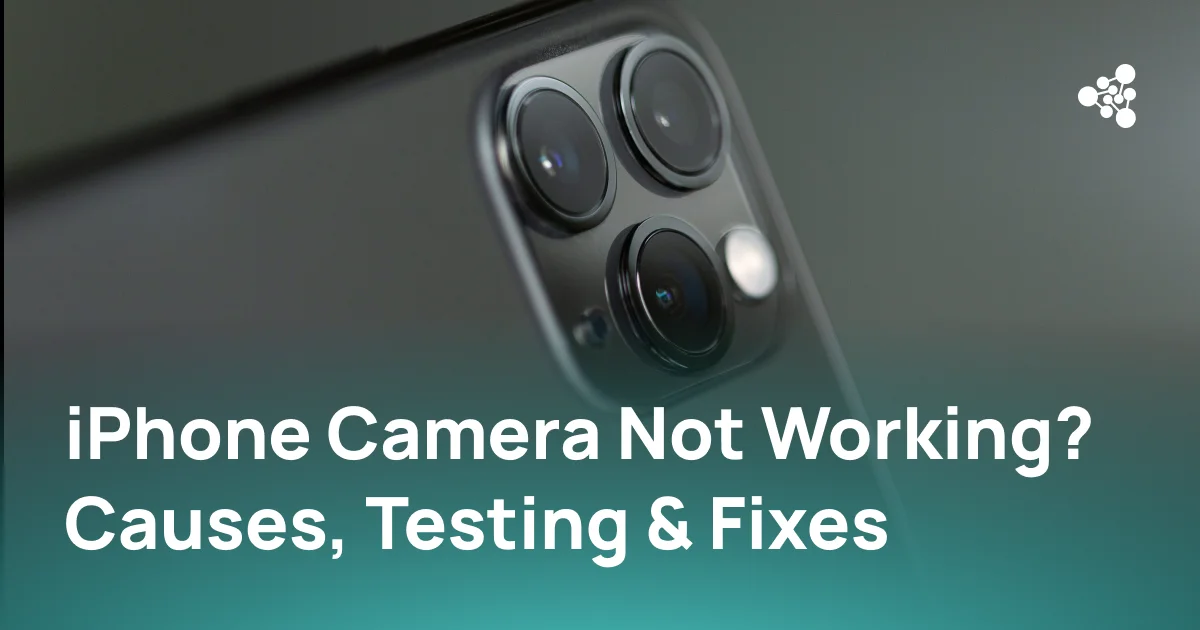
An iPhone camera can fail in several ways: the Camera app may show a black screen, images may appear blurry, autofocus may stop working, or the phone may fail to switch between the front and rear cameras. Some problems are temporary and software-related, while others point to damage or a faulty camera module.
The useful first step is to determine whether the problem affects the Camera app, a specific camera, or the device more broadly. Testing the front and rear cameras separately can narrow down the cause before repair or replacement is considered.
Quick Answer
If the iPhone camera is not working, remove anything that could obstruct the lenses, restart the iPhone, update iOS, and test the front and rear cameras separately. Check photos, video, autofocus, zoom, and flash. If one camera repeatedly shows a black screen, cannot focus, shakes abnormally, or fails across multiple apps, the problem may be hardware-related and require further diagnostics or repair.
Key Takeaways
- A black screen does not automatically mean that the camera module is broken; software and app-specific problems can produce similar symptoms.
- Testing the front and rear cameras separately helps identify whether the issue is isolated to one camera.
- Cases, magnetic accessories, dirty lenses, iOS problems, and previous repairs can affect camera operation.
- A camera that consistently fails across different apps after a restart and iOS update is more likely to require hardware diagnostics.
- For used iPhones, camera testing should cover image quality and individual camera functions rather than simply confirming that the Camera app opens.
Common Signs Your iPhone Camera Isn’t Working Properly
Camera faults are not limited to a camera that refuses to open. Common symptoms include:
- a black screen in the Camera app;
- blurry photos despite a clean lens;
- autofocus that repeatedly hunts or fails to lock;
- visible spots, artifacts, or color distortion;
- unusual shaking or vibration in the preview;
- inability to switch between the front and rear cameras;
- flash that does not operate correctly;
- the Camera app freezing or closing;
- one camera working while another consistently fails.
The exact symptom matters because different failures can point to different causes. A problem limited to one application, for example, should be investigated differently from a rear camera that fails in every application that tries to access it.
Why Is My iPhone Camera Not Working?
Several software and hardware conditions can cause an iPhone camera to stop working correctly.
Temporary software problems
A temporary iOS or Camera app problem can cause a frozen preview, black screen, or unexpected app behavior. Restarting the device is therefore one of the basic troubleshooting steps recommended by Apple when the camera does not work correctly.
Cases and accessories
A case, film, lens attachment, magnetic mount, or another accessory can obstruct the camera or interfere with its operation. Apple recommends removing these accessories before testing the camera again.
Dirty or obstructed lenses
Fingerprints, dirt, or contamination on the lens can reduce sharpness and create apparent image-quality problems. Clean the front and rear lenses with a microfiber cloth before assuming that a blurry image is caused by the camera hardware.
App permissions or restrictions
If the camera works normally in Apple's Camera app but fails in a particular third-party app, check whether that app has permission to use the camera. An app-specific problem is different from a camera that fails system-wide.
Physical damage or previous repair
Drops, liquid exposure, internal damage, or previous camera replacement can affect the camera module and its connection to the device. Apple also notes that non-genuine replacement cameras can produce autofocus problems, poor image sharpness, blank previews, or unexpected behavior in third-party apps.
Why Is My Back Camera Not Working?
When the front camera works normally but the back camera is not working on an iPhone, the fault can often be narrowed down to the rear camera system rather than the entire Camera app.
Start by switching between the available rear camera options and testing both photos and videos. Depending on the iPhone model, different zoom levels can involve different physical cameras. A failure that appears only with a particular view or zoom level can therefore provide useful diagnostic information.
Rear-camera problems can follow a drop or previous repair, but physical damage is not the only explanation. Software should still be ruled out before concluding that the camera module needs replacement.
For supported models, previous camera repair can also be checked under Settings → General → About → Parts and Service History. Apple states that iPhone 12 models and later can provide service-history information for front and rear cameras when running supported iOS versions.
How to Test the Front and Back Cameras on an iPhone
A useful camera check should test individual functions instead of simply opening the Camera app.
Start with the rear camera:
-
Open Camera and take a photo in good lighting.
-
Record a short video.
-
Focus on objects at different distances.
-
Test the available zoom levels.
-
Check the resulting images for blur, spots, unusual colors, or artifacts.
-
Test the LED flash or torch separately.
Then switch to the front camera and repeat the relevant photo, video, and focus checks.
Apple specifically recommends testing both the front and rear cameras when troubleshooting a camera problem.
It is also useful to open another application that uses the camera. If the camera works there but not in the Camera app, or vice versa, the pattern provides additional evidence about whether the problem is app-specific or affects the camera system more broadly.
What to Do If the Camera App Is Not Working
If the camera app is not working, begin with the least invasive checks:
- close and reopen the Camera app;
- remove cases, films, magnetic mounts, or lens accessories;
- clean the lenses;
- restart the iPhone;
- install available iOS updates;
- test the camera again;
- compare the front and rear cameras.
These steps are useful because they eliminate several common external and software-related causes before hardware repair is considered. Apple recommends restarting the device, updating iOS, removing potentially interfering accessories, and testing both cameras before seeking service.
If the problem occurs only in a third-party app, verify the app's camera permission and test another camera-enabled app before treating the issue as a hardware failure.
How to Tell If It’s a Software or Hardware Problem
No single symptom can always identify the cause, but the pattern of failure can provide useful evidence.
A software or app-related problem is more plausible when:
- the camera fails only in one app;
- normal operation returns after restarting the phone;
- the issue disappears after an iOS or app update;
- both cameras behave normally during repeated tests outside the affected app.
A hardware problem becomes more plausible when:
- the same camera consistently fails across multiple apps;
- one camera remains unavailable while another works;
- the image repeatedly shakes or cannot focus under normal conditions;
- persistent spots or image defects remain after cleaning the lens;
- the problem began after a drop, liquid exposure, or repair;
- restarting and updating iOS do not change the behavior.
Previous repair history can provide another clue. Apple notes that improperly functioning or non-genuine replacement cameras may cause focusing problems, image-quality issues, frozen third-party apps, or blank previews.
iPhone Camera Troubleshooting Steps to Try
A practical troubleshooting sequence is:
Remove accessories → Clean lenses → Test front and rear cameras → Restart → Update iOS → Test multiple apps → Check repair history → Run diagnostics or seek service
This sequence moves from easily reversible causes toward issues that may require professional diagnosis.
Avoid using a single successful photo as proof that the entire camera system works. A device may pass a basic visual check while still having problems with a particular camera, autofocus, image sensor, flash, or other function.
This distinction becomes especially important when testing used or refurbished iPhones, where camera condition can affect grading, repair decisions, resale value, and returns.
Testing iPhone Cameras in Used Device Operations
Manual camera testing becomes harder to standardize when dozens or hundreds of devices need to be processed. An operator has to check multiple functions and identify defects consistently across different iPhone models.
NSYS Diagnostics provides automated diagnostics for used and refurbished devices and includes testing for front and rear cameras. The system can also check camera-part authenticity on supported iOS devices.
Its AI-powered camera defect detection is designed to identify issues such as hardware damage, color distortion, and defective pixels in the image sensor. This can help businesses standardize camera assessment instead of relying only on subjective visual inspection.
For refurbishers, wholesalers, retailers, and trade-in operations, the objective is not simply to establish that the camera opens. The test needs to provide enough information to decide whether the device can be graded and resold as-is or requires further inspection or repair.
When an iPhone Camera Problem May Require Repair
Further diagnostics or professional service should be considered when the camera still fails after the basic troubleshooting steps.
This is particularly relevant when:
- the problem appeared after physical or liquid damage;
- the rear or front camera consistently shows a black screen;
- only one camera repeatedly fails;
- autofocus or stabilization remains abnormal;
- persistent image defects are visible;
- the camera has already been replaced and does not operate correctly.
Apple recommends service when the camera or flash continues to malfunction after troubleshooting.
For a previously repaired iPhone, Parts and Service History can provide additional context. Depending on the model and iOS version, the system may identify a camera as Genuine, Used, or Unknown. An Unknown status can indicate, among other possibilities, that the part is non-genuine or is not functioning as expected.
Frequently Asked Questions
Why is my iPhone camera showing a black screen?
A black camera screen can result from a temporary software problem, an app-specific issue, or a camera hardware fault. Restart the iPhone, update iOS, and test both cameras and another camera-enabled app to determine whether the failure is persistent.
Why does my front camera work but not my back camera?
If the front camera operates normally while the rear camera consistently fails across different apps, the problem may be isolated to the rear camera system. Test the available rear cameras and zoom levels separately before considering repair.
Can an iOS update cause the camera to stop working?
Software problems can affect camera behavior. Apple also notes that compatibility problems involving non-genuine replacement cameras can appear after an iOS update containing camera updates or new camera features.
Why does my iPhone camera work in some apps but not others?
If the camera works normally in one app but not another, check the affected app's permissions and software first. App-specific failures are less indicative of a general camera hardware problem than a camera that fails consistently across multiple applications.
How can I tell if my iPhone camera is physically damaged?
Persistent focus problems, abnormal shaking, image defects, or a camera that remains unavailable after restarting and updating the phone can justify further hardware diagnostics, particularly if the problem started after a drop, liquid exposure, or repair.
Can a broken back camera be fixed without replacing the phone?
Yes. A camera fault does not necessarily require replacing the entire iPhone. Apple provides camera repair options, and the appropriate repair depends on the model, damage, and affected component.
Conclusion
When an iPhone camera is not working, the main task is to isolate the failure before deciding on repair. Test the front and rear cameras separately, check multiple camera functions, eliminate accessories and software issues, and look for consistent symptoms that point to hardware damage.
For businesses processing used iPhones, repeatable camera diagnostics can make this assessment more consistent across large device volumes. NSYS Diagnostics provides camera testing and automated defect detection as part of a broader device-testing workflow, helping identify camera problems before grading, resale, or repair decisions.