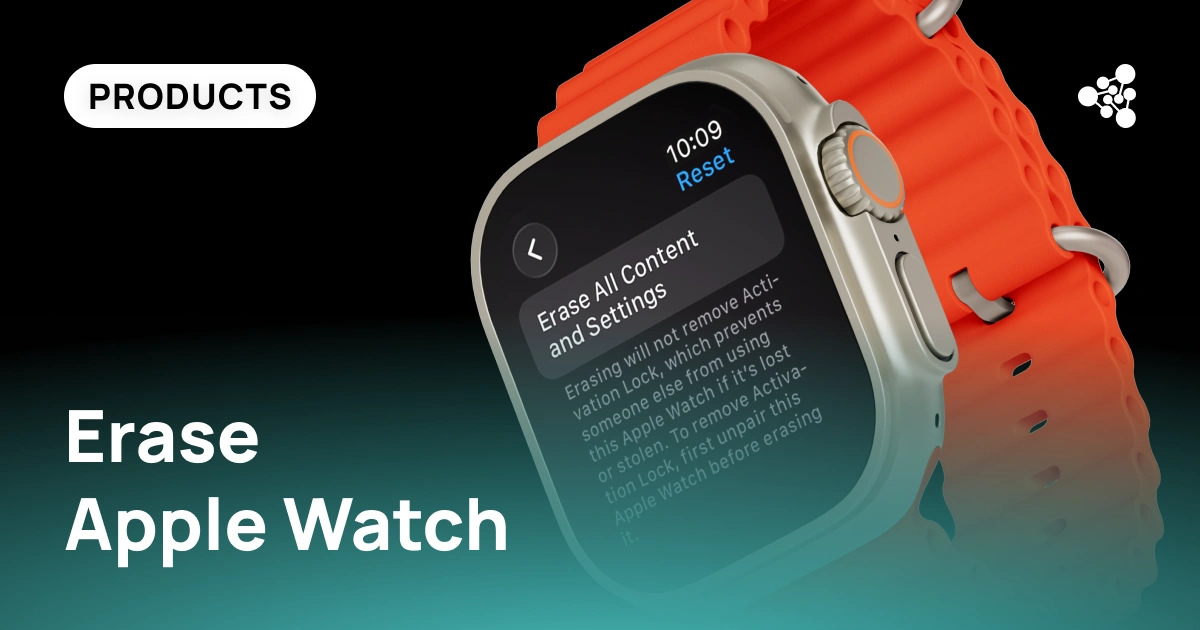
Erasing an Apple Watch is simple, but using the wrong reset method can cause problems for the next owner. Many people think erasing and unpairing are the same thing. They're not.
If you're preparing your watch for resale, trade-in, or refurbishment, it's important to remove both your personal data and your connection to the device. Here's how to erase an Apple Watch the right way.
Key Takeaways
- Unpairing from the paired iPhone is the recommended way to erase an Apple Watch.
- Erasing the watch from Settings removes your data but may leave it linked to your Apple Account.
- You can reset the watch even without the paired iPhone or passcode.
- Before selling the device, make sure it can be activated by its next owner.
The safest way to erase Apple Watch is to unpair it through the Watch app on the paired iPhone. This automatically creates a backup, restores factory settings, and removes the watch from your Apple Account. If the paired iPhone isn't available, you can erase the watch directly, although you'll need to remove it from Find My separately before transferring ownership.
Erasing vs. Unpairing Apple Watch
Although the terms are often used interchangeably, they aren't the same.
Erasing restores the watch to factory settings and removes the data stored on it. Unpairing does that too, but it also disconnects the watch from your Apple Account and creates a backup that can be restored later.
If you're keeping the watch, either option may work. If you're selling, trading in, or giving it away, unpairing is the recommended choice.
Before You Erase Your Apple Watch
Before resetting the watch:
- Make sure you know your Apple Account password.
- Remove payment cards from Apple Wallet.
- Charge the battery to at least 50%.
- If you have a GPS + Cellular model, decide whether to keep or remove the mobile plan.
Taking a minute to prepare the device helps avoid activation issues later.
How to Unpair and Erase Apple Watch Using an iPhone
If you still have the paired iPhone, follow these steps:
- Open the Watch app.
- Tap All Watches and select your watch.
- Tap the Info button, then choose Unpair Apple Watch.
- Enter your Apple Account password if requested.
- Wait until the reset is complete.
For Cellular models, you'll also be asked whether to keep or remove the mobile plan. If the watch is changing owners, removing the plan is usually the best option.
How to Erase an Apple Watch Without an iPhone
Don't have a paired iPhone? You can still erase the watch.
Open Settings → General → Reset → Erase All Content and Settings, enter the passcode, and confirm the reset.
The watch will return to factory settings, but it may still be associated with your Apple Account. Before someone else can use it, you'll also need to remove it from Find My.
How to Force Erase Apple Watch Without a Passcode
If you've forgotten the passcode, place the watch on its charger, press and hold the side button until the power options appear, then press and hold the Digital Crown until the reset screen opens. Select Erase All Content and Settings and confirm the reset.
This restores the watch, but ownership information remains unchanged until the device is removed from the original Apple Account.
Activation Lock and Common Mistakes
The most common issue after resetting an Apple Watch is Activation Lock. If the watch is still linked to the previous owner's Apple Account, the next user won't be able to activate it.
Before selling or accepting a used Apple Watch, check that:
- the device has been removed from Find My;
- it no longer requests the previous owner's Apple Account during setup;
- all hardware functions operate correctly.
For businesses processing large numbers of Apple Watches, a factory reset is only part of the intake process. Functional testing is just as important for identifying battery, touchscreen, button, and sensor issues before resale.
NSYS Diagnostics automates hardware testing for Apple Watch, helping refurbishers, retailers, and trade-in companies evaluate device condition faster, standardize quality checks, and prepare devices for their next owner with greater confidence.
Frequently Asked Questions
How do I erase my Apple Watch completely?
The recommended method is to unpair it from the paired iPhone, which erases the device and removes it from your Apple Account.
Can I erase an Apple Watch without an iPhone?
Yes. You can reset it directly from Settings, although you'll still need to remove it from Find My before transferring ownership.
How do I force erase an Apple Watch?
Use the built-in recovery option while the watch is on its charger to erase it without entering the passcode.
Does erasing an Apple Watch remove Activation Lock?
No. Activation Lock is removed only after the watch is disconnected from the original owner's Apple Account.