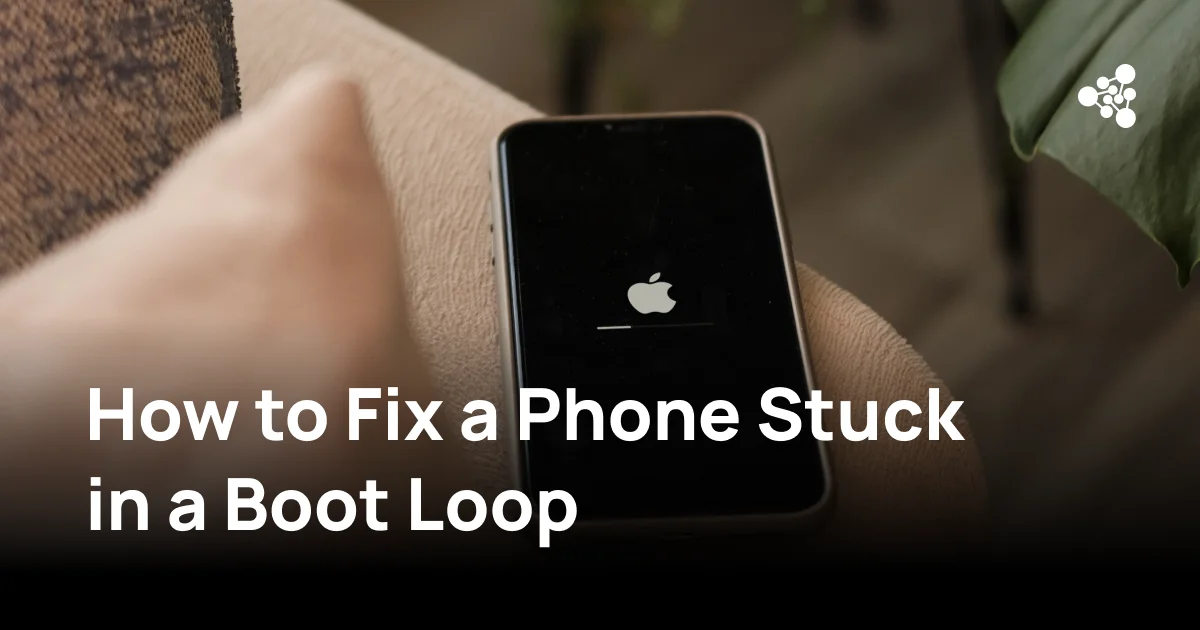
Your phone turns on, displays the manufacturer's logo, and restarts before reaching the home screen. The same sequence repeats, leaving you unable to access your apps, photos, or messages.
This problem, known as a boot loop, can affect Android phones and iPhones. It may result from a failed software update, corrupted system files, an incompatible app, or faulty hardware.
Understanding how to fix a boot loop helps you identify the cause, choose an appropriate recovery method, and avoid unnecessary data loss.
Quick Answer
To fix a boot loop, start by force restarting your phone and checking the battery and charging accessories. On Android, try Safe Mode or available recovery options. On iPhone, use a computer to update iOS through recovery mode. If these methods fail, a factory reset or professional repair may be necessary. Always prioritize data preservation before attempting a reset.
Key Takeaways
- Boot loops occur when a smartphone repeatedly restarts without completing startup.
- Common causes include failed updates, problematic apps, corrupted system files, and hardware faults.
- Force restarting, Android Safe Mode, and certain recovery procedures may resolve the issue without deleting data.
- A factory reset can fix some software problems but cannot repair damaged hardware.
- Used smartphones should undergo functional testing after recovery to identify additional defects before resale.
What Is a Boot Loop?
A boot loop occurs when a smartphone repeatedly attempts to start but cannot finish loading its operating system. Instead of reaching the home screen, the device restarts and begins the process again.
Common symptoms include:
- The manufacturer's logo repeatedly appears and disappears.
- The phone restarts before reaching the lock screen.
- The device remains stuck on the startup animation.
- The screen turns black before another startup attempt.
- The phone briefly starts but immediately restarts.
A phone stuck on the logo is not necessarily experiencing a boot loop. Some devices freeze without restarting, although the underlying causes may be similar.
Random restarts during normal use are also different from boot loops and may indicate battery, overheating, or software stability problems.
Why Does a Phone Get Stuck in a Boot Loop?
Boot loop causes range from temporary software errors to serious hardware faults. Identifying the likely cause helps determine which recovery method to attempt first.
Software Updates and System Glitches
An interrupted or unsuccessful operating system update can prevent a smartphone from loading essential system files.
The issue may occur because of installation errors, insufficient storage, or unexpected interruptions. Sometimes an update exposes an existing hardware or software problem rather than causing it directly.
If a phone starts boot looping immediately after an update, official software recovery is a reasonable next step.
Problematic Apps
Certain Android applications can interfere with system operation, especially when they require extensive permissions or modify system behavior.
An incompatible or recently installed app may contribute to repeated restarts.
Android Safe Mode can help identify these conflicts by temporarily disabling downloaded applications.
Third-party applications are less likely to cause system-wide startup failures on iPhones because of iOS restrictions, although software problems remain possible.
Storage and System File Issues
Critically low storage can interfere with system operations and updates. Corrupted system files may also prevent the operating system from starting correctly.
These problems sometimes follow interrupted updates, unsupported firmware modifications, or internal storage failures.
If essential files cannot be loaded, the device may repeatedly restart or remain on the startup screen.
Battery and Hardware Problems
Boot loops are not always software-related.
A failing battery may struggle to provide stable power during startup. Other potential hardware causes include:
- Damaged power buttons.
- Charging circuit failures.
- Faulty internal storage.
- Motherboard damage.
- Liquid damage or corrosion.
- Damaged internal connectors.
If the problem begins after a drop, liquid exposure, or repair, hardware inspection may be more appropriate than repeated software resets.
What to Do When Your Phone Keeps Restarting
Start with basic troubleshooting before attempting advanced recovery.
1. Force Restart Your Phone
A force restart interrupts the current startup process without intentionally deleting personal data.
For many Android phones, hold the Power button or press Power and Volume Down simultaneously. The combination varies by manufacturer.
For iPhone 8 and later:
-
Quickly press and release Volume Up.
-
Quickly press and release Volume Down.
-
Hold the Side button until the Apple logo appears.
For iPhone 7 and 7 Plus, hold Side and Volume Down together.
For iPhone 6s and earlier, hold Home and Side or Top together.
If the phone starts normally, monitor whether the problem returns.
2. Check the Battery and Charging Accessories
Connect the device to a compatible charger and allow it to charge before restarting.
Inspect the charging cable, adapter, and port for visible damage. If necessary, test another known-working compatible charger.
A phone that starts only when connected to power may have a battery or power-management issue.
If the device becomes unusually hot, shows battery swelling, or has visible damage, stop charging it and seek professional assistance.
3. Remove the SIM or SD Card if Needed
On devices with removable cards, temporarily removing the microSD card may help identify external storage-related problems.
Power off the phone first whenever possible.
A SIM card is less likely to cause a true boot loop, so removing it is generally a secondary troubleshooting step.
If the phone starts normally after removing a card, investigate the card before reinstalling it.
How to Fix an Android Phone Stuck in a Boot Loop
Android recovery procedures differ between Samsung, Google Pixel, Xiaomi, Motorola, and other manufacturers.
Always check the instructions for your specific model before using recovery menus.
Start Your Phone in Safe Mode
Safe Mode starts Android with downloaded applications temporarily disabled.
On some Android phones, you can enter Safe Mode by pressing and holding the Power Off option in the power menu. Other models require hardware button combinations during startup.
If the phone starts successfully in Safe Mode:
-
Identify recently installed or updated apps.
-
Remove suspicious applications.
-
Restart the phone normally.
-
Check whether the problem returns.
If the boot loop disappears, a downloaded application may have caused the instability.
If the phone remains stuck in Safe Mode after restarting, check whether a volume button is physically stuck.
Use Android Recovery Mode
Android Recovery Mode provides maintenance options that may be accessible even when the operating system cannot start.
Depending on the device, available options may include restarting, applying an update, or resetting the phone.
Some Android models use Power and Volume Up to enter recovery mode. Others use different combinations or require a USB connection.
Review the available commands carefully.
|
Recovery option |
Purpose |
Data impact |
|
Reboot system now |
Attempts a normal restart |
Normally preserves data |
|
Apply update |
Installs a supported software package |
Depends on the procedure |
|
Wipe cache partition |
Clears a system cache partition, if supported |
Normally preserves personal files |
|
Wipe data/factory reset |
Resets the device |
Erases locally stored user data |
Many newer Android devices do not offer a traditional Wipe Cache Partition option.
If official recovery tools support reinstalling firmware, verify compatibility before proceeding. Installing incorrect firmware can create additional problems or erase data.
What if Android Is Stuck on the Boot Screen?
If Android remains on the manufacturer's logo after an update, allow additional startup time.
If nothing changes, force restart the device and try the manufacturer's supported recovery procedure.
Persistent startup failure after software recovery may indicate internal storage damage or another hardware fault.
How to Fix an iPhone Stuck in a Boot Loop
An iPhone stuck on the Apple logo may have an iOS installation problem, corrupted software, or faulty hardware.
Apple provides recovery procedures that can sometimes restore normal startup without deleting personal data.
Force Restart Your iPhone
Begin with the force restart combination appropriate for your model.
On iPhone 8 and later, press Volume Up, press Volume Down, then hold the Side button until the Apple logo appears.
If the iPhone continues restarting, use a computer to attempt iOS recovery.
Update iOS Using a Computer
Depending on your computer, use Finder on Mac, the Apple Devices app on Windows, or iTunes where applicable.
Follow these steps:
-
Connect the iPhone to your computer.
-
Open the appropriate application.
-
Put the iPhone into recovery mode using the instructions for its model.
-
Select the connected device.
-
When offered Update or Restore, choose Update first.
The Update option attempts to reinstall iOS while preserving personal data.
Recovery mode requires holding the relevant buttons until the recovery screen appears, rather than releasing them at the Apple logo.
The process may fail if the phone has severe software corruption or hardware problems.
Restore Your iPhone if Necessary
If updating iOS does not resolve the issue, a full restore may be required.
Restoring an iPhone reinstalls the operating system and erases locally stored data.
Check whether an iCloud or computer backup exists before proceeding.
A restore does not remove Activation Lock, so the associated Apple Account credentials may still be required.
If the phone continues boot looping after a successful restore, professional hardware inspection is recommended.
Can You Fix a Boot Loop Without Losing Data?
In some cases, yes.
Force restarting, Android Safe Mode, and certain official software recovery procedures can preserve personal files.
However, successful recovery depends on the underlying problem.
|
Method |
Can preserve data? |
Limitation |
|
Force restart |
Yes |
May not fix persistent problems |
|
Android Safe Mode |
Yes |
Requires successful Safe Mode startup |
|
Supported cache clearing |
Usually |
Not available on all devices |
|
Official OS update |
Sometimes |
Depends on recovery success |
|
Factory reset |
No |
Deletes locally stored user data |
|
Hardware repair |
Sometimes |
Depends on the damaged components |
Modern smartphones encrypt stored information, making recovery difficult when the operating system or critical hardware cannot function.
If important information has not been backed up, avoid experimenting with unofficial firmware or destructive recovery methods.
Can You Recover Photos From a Phone That Won't Boot?
First, check whether photos are available through Google Photos, iCloud Photos, or another previously configured backup service.
If images exist only in the phone's internal storage, recovery depends on the device's condition.
Because smartphones use encryption, removing the storage chip generally does not provide direct access to personal files.
For valuable data, consult a qualified recovery specialist before resetting the phone.
When to Factory Reset Your Phone or Get Professional Help
A factory reset should generally be considered after non-destructive troubleshooting fails.
It can resolve some software-related boot loops by removing applications, settings, and corrupted user data.
However, it cannot fix faulty batteries, damaged storage, or motherboard problems.
Before resetting, confirm whether:
- Important data has been backed up.
- Official recovery methods have been attempted.
- The device shows physical damage.
- Startup problems began after an update.
- The phone can enter Safe Mode or Recovery Mode.
Professional repair is especially appropriate when the device overheats, has suffered liquid damage, cannot access recovery mode, or repeatedly fails during software installation.
Boot Loops in Used and Refurbished Smartphones
For businesses working with used smartphones, boot loops complicate device assessment, repair decisions, and resale preparation.
A phone that cannot start normally may be impossible to evaluate through standard functional testing.
The startup issue may also hide additional problems affecting the camera, touchscreen, battery, connectivity, or other components.
Separating Software Problems From Hardware Defects
Not every boot-looping phone requires the same repair.
One device may need an operating system update, while another has damaged internal storage.
A practical assessment workflow includes:
-
Record the device model and visible condition.
-
Document startup behavior and error messages.
-
Check for physical damage and power-related problems.
-
Attempt appropriate non-destructive recovery.
-
Perform functional testing after successful startup.
-
Decide whether the device requires repair or can proceed toward resale.
Accurate diagnosis helps businesses avoid unnecessary repairs and make more informed pricing decisions.
Data Security Considerations
A boot loop does not mean that previously stored information has been erased.
For businesses handling trade-in devices, returns, or corporate smartphones, this distinction is important.
Devices should not be treated as successfully sanitized simply because the operating system cannot start.
If the phone is recovered, appropriate data erasure procedures should be completed before resale when required.
Functional Testing After Recovery
Once a smartphone starts normally, structured diagnostic testing can help identify defects that were previously inaccessible.
NSYS Diagnostics is diagnostic software designed for businesses processing used mobile devices. It supports functional testing of Android and iOS smartphones, helping operators assess device condition before refurbishment or resale.
However, device diagnostics and operating system recovery serve different purposes.
A phone that cannot reach the supported testing environment may need software recovery or hardware repair before standard diagnostic testing can begin.
After recovery, functional testing provides additional information for repair, grading, and resale decisions.
How to Prevent Boot Loops in the Future
Not every boot loop is preventable, especially when caused by unexpected hardware failure.
However, several maintenance practices can reduce software-related risks.
Keep Software Updated
Install supported operating system updates through official channels.
Before updating, ensure the device has sufficient battery power and storage. Avoid interrupting installations.
Maintain Available Storage
Regularly remove unnecessary files and applications.
Critically low storage can interfere with operating system processes and updates, increasing the risk of instability.
Install Apps From Trusted Sources
Use official application stores whenever possible.
Avoid unsupported firmware modifications or unfamiliar applications requiring extensive system permissions.
Protect the Hardware
Avoid excessive heat, moisture, physical impact, and damaged charging accessories.
If the battery swells or the phone overheats abnormally, stop using it and arrange professional inspection.
Back Up Important Data
Regular backups cannot prevent boot loops, but they can reduce the consequences of a serious startup failure.
Android users can review Google backup settings, while iPhone users can use iCloud or computer backups.
Confirm that important information is actually included in completed backups.
Frequently Asked Questions
Why Does My Phone Keep Restarting on Its Own?
Repeated restarts may result from software errors, incompatible apps, battery problems, overheating, or hardware damage. If the phone cannot complete startup, it may be experiencing a boot loop.
Why Is My Phone Stuck on the Logo Screen?
The device may be unable to load essential operating system files because of corrupted software, failed updates, storage problems, or hardware faults. A force restart is usually an appropriate first step.
Can a Boot Loop Fix Itself?
A temporary startup error may disappear after restarting. Persistent boot loops, however, generally require troubleshooting or repair.
Will a Factory Reset Fix a Boot Loop?
A factory reset can resolve certain software-related problems but cannot repair damaged hardware. It also erases locally stored user data.
Can I Recover Photos From a Phone That Won't Boot?
Photos may be recoverable from cloud synchronization services or existing backups. Recovery from internal storage depends on the phone's condition and whether access can be restored.
What Should I Do if My Phone Started Boot Looping After an Update?
Try a force restart first. If the issue continues, follow the manufacturer's official recovery instructions. On iPhone, updating iOS through a computer may restore functionality while preserving personal data.
Conclusion
Knowing how to fix a boot loop starts with identifying whether the problem is software-related or caused by faulty hardware. Force restarting, Safe Mode, and official recovery tools can resolve some startup failures without erasing personal information.
If these methods fail, professional inspection may be necessary before attempting a factory reset.
For used-device businesses, successful startup recovery should be followed by functional testing to identify remaining defects and determine whether the smartphone is suitable for refurbishment or resale.